Before Sharing a Home Camera Feed, Check Who Can Do What
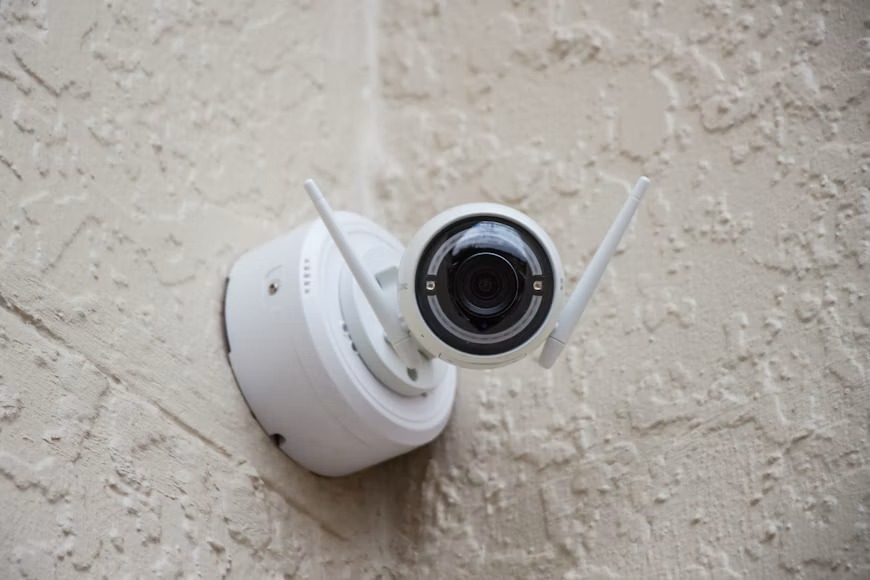
Letting a neighbor or relative look at your home camera while you travel can be a kind and sensible thing to do. The difficulty is that “sharing” in a camera app does not always mean “looking only.” Depending on the product, the person you invite might be able to change settings, see more cameras than you intended, or review saved recordings from days you never meant to share. Your own camera’s help pages are the final word on how your model behaves.
Key takeaways
- Decide the job first, such as “tell me if a package arrived,” and then choose the smallest access that does that job.
- Many camera apps separate an owner or administrator from people who may only watch, but not every camera does. Read your model’s help pages before you invite anyone.
- A strong, unique password, a second sign-in check, and regular updates protect your account whether or not you share it.
- If you cannot limit what a guest sees or does, it is reasonable to skip sharing.
Start with the job, not the app
Before you open any app, answer three plain questions on paper. What does the other person need to see? When should their access begin and end? Do they need saved recordings, or is a live look enough?
A neighbor who checks whether a parcel arrived needs very little: a view of the front door for a few days. That is a different job from helping you manage the camera, or watching a room inside the house. The smaller the job, the smaller the access should be.
| What you want | Smallest access that does it | What to check first |
|---|---|---|
| A neighbor confirms a delivery arrived | Live view of the doorstep camera, for the days you are away | Can the person also see indoor cameras or older recordings? |
| A family member watches the house while you are in hospital | Live view, and recorded clips only if you truly need them | Can the person save or pass on clips? |
The Federal Trade Commission (FTC), the United States consumer protection agency, advises looking for cameras with permission levels and with options that control who can watch and when. Not every camera offers these, so find out before the trip.
How camera apps divide up “who can do what”
Most camera apps have two kinds of people. An owner or administrator is in charge of the account and can change settings, add or remove people and, in some products, delete recordings. A viewer, sometimes called a member or shared user, is meant to look at the camera and not much more.
The FTC adds that some cameras let you decide who may watch and at what times, such as a friend who may watch only while you are away.
The details differ a great deal between makers. The table shows what two manufacturers’ help pages said in November 2026. It is not a recommendation or a ranking, and your own camera may work differently. Neither page describes an automatic end date for ordinary guests, apart from a 48-hour limit on one installer level, so plan to remove access yourself.
| Question | Ring help page | Google Home help page |
|---|---|---|
| Which roles exist? | Shared users at Limited, Standard or Advanced level, plus a separate installer level | Admin or Member |
| What stays with the owner or admin? | Deleting recordings, deleting a location and managing account details are marked owner-only | Adding or removing people and devices, and changing home settings |
| Who can see history? | Live view and event history are marked for shared levels. Reviewing recordings needs a subscription. | A separate “Activity” switch that an Admin sets for each Member |
| Can you share one camera only? | Access is chosen per device and per location | No per-device limit is described. The “Settings” switch reaches every device, including ones added later. |
| How is someone removed? | The owner removes the person from a location, and they lose every device there | Only an Admin can remove people, and the person loses access, including stored video history |
The lesson is that “viewer” can mean different things in different apps, and a setting that sounds small can reach more than you expect.
Secure your own account and camera first
Passwords and a second check
Use a password that is hard to guess and that you use nowhere else. Replace the camera’s default username and password, which criminals can find easily. If your camera keeps video in the cloud (on the maker’s computers, reached through the internet), turn on two-factor authentication if it is offered. That is a second check after the password, such as a code sent to your email or made by an app on your phone.
Software updates
A camera has built-in software called firmware. The viewing app on your phone is separate software, and both can need security updates. The FTC suggests checking the maker’s website for firmware updates, or signing up to receive them, and setting the app to update by itself. The UK’s National Cyber Security Centre adds a tip for buyers: avoid devices that are out of support, or soon will be, because they are easier to break into.
Your home network
Your router is the box that connects your home to the internet. The FTC advises a strong router password, the router’s firewall switched on, regular router updates, and Wi-Fi set to WPA2 or WPA3, which scramble wireless traffic so outsiders cannot read it. If your router allows it, put cameras on a separate network from computers and printers.
The Cybersecurity and Infrastructure Security Agency (CISA) gives similar advice in an archived 2021 post that it says may be outdated, so treat it as a general principle.
A step-by-step plan before you share
- Write down the job, the start and end dates, and whether recordings are needed.
- Find your camera’s help page on sharing or user roles, and read what a viewer can and cannot do.
- Use the app’s own invitation feature, if it has one, rather than handing over your login.
- Choose the lowest permission that does the job, and leave out any camera that covers a private room.
- Test it. Ask the person what they can see, and whether they can change settings.
- Keep a short access record: the owner, who was invited, what they may do, and your review date. Leave passwords out.
Before you leave, run through this checklist.
- My camera account has a unique password and, if offered, two-factor authentication.
- The camera firmware and the phone app are up to date.
- My router has a strong password, and my Wi-Fi uses WPA2 or WPA3.
- I have found the control that removes a viewer and read what it changes.
- Cameras that cover private areas are off or not shared.
- I have set a date to remove or review access.
Ending the sharing, or choosing not to share
When you are home, remove the person, then check the list of people with access against your record. The Ring page in the table does not say whether a removed person can still see past recordings, so ask the manufacturer if that matters to you. The FTC suggests reviewing access logs for unfamiliar addresses or unusual access times, if your camera provides them.
If you sell or give away a camera, the National Cyber Security Centre advises a factory reset first, which restores the original settings and removes your personal data. If you think someone has taken control of a device, it advises resetting it by the maker’s instructions.
Sometimes the product cannot limit access the way you need. Then the simplest safe choice may be not to share the feed. A neighbor can look at your doorstep in person instead. For private rooms, the FTC suggests a camera that lets you turn off remote viewing.
Frequently asked questions
Is it safe to give a neighbor my password instead of inviting them?
These sources do not address this directly, but permission levels exist to avoid it, because a shared login gives the other person every power you have. If your app can invite people with limited roles, use that.
What if my camera has no viewer-only setting?
You may decide not to share the feed. The FTC says plainly that not all cameras offer these settings. A neighbor checking in person can do the same job with no risk to your account.
Should I turn off indoor cameras while someone else has access?
For a camera that covers a private area, switching off remote viewing or leaving it out of the sharing is sensible. Check whether your app can share one camera at a time, because the two help pages in the table differ.
How can I tell whether someone else has been watching my camera?
Check the list of people with access, and any access log your camera offers. If you are worried, follow the maker’s reset instructions, set a new password and turn on two-factor authentication.
Before you decide
Sharing a camera feed is a decision about trust and about settings. Ask what job needs doing, what the smallest access is, and how you will end it. If a family member helps, go through the checklist together and put the review date on a shared calendar.
When you shop for a camera, ask whether the maker documents a way to give limited viewing without handing over the main account, and how security updates are delivered. This article explains a decision process and does not rate or recommend any camera.
Sources
- How To Secure Your Home Security Cameras (Federal Trade Commission, Consumer Advice, February 2023)
- Securing Your Internet-Connected Devices at Home (Federal Trade Commission, Consumer Advice, August 2022)
- Home Network Security (Cybersecurity and Infrastructure Security Agency, archived February 2021)
- Smart devices: using them safely in your home (National Cyber Security Centre, United Kingdom)
- Managing permissions for users (Ring Help, Ring LLC)
- Manage people and permissions in the Google Home app (Google Home and Nest Help, Google)
Last updated: November 2026. This article is general information, not home-security or safety advice.